
How to Report a Post to Facebook on Desktop and Mobile
Learn how to report a Facebook post on desktop and mobile, the valid reasons for reporting, and how to track your report’s status effectively.
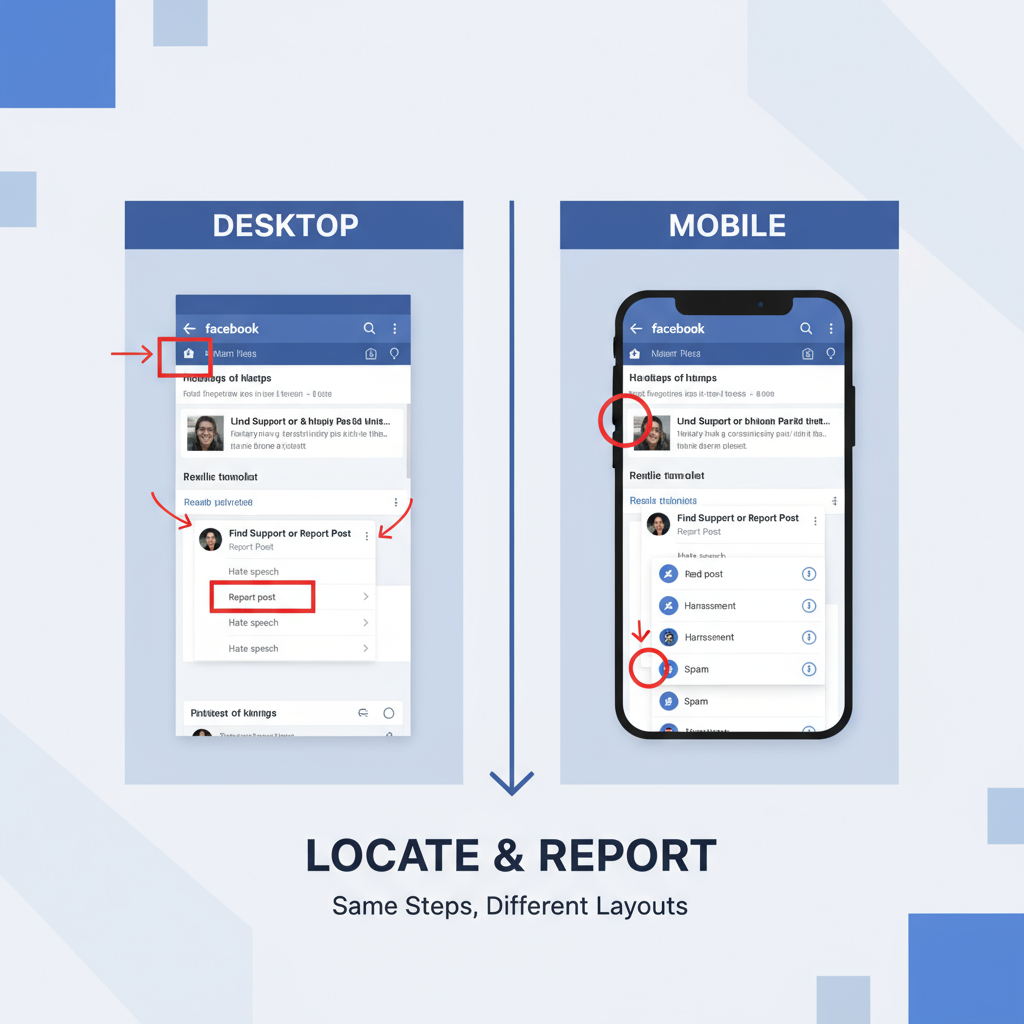
How to Report a Post to Facebook on Desktop and Mobile
Facebook is one of the largest social media platforms in the world, but its wide reach means you may encounter inappropriate, harmful, or misleading posts. Understanding how to report a post to Facebook helps keep your feed — and the platform as a whole — safe and compliant with its rules. In this guide, you’ll learn the step-by-step process for reporting posts on both desktop and mobile, how Facebook handles these reports, and practical tips to make your reports more effective.
---
Understanding Facebook's Community Standards
Before you take action, it’s worth knowing that Facebook enforces detailed Community Standards. These guidelines are designed to:
- Protect users from harmful content.
- Maintain a respectful and inclusive environment.
- Balance free expression with safety.
When you report a post, Facebook reviews it according to these standards. Reading through them can help you determine whether a post truly violates the rules.
---
Identify Valid Reasons to Report a Post
Not every post you dislike qualifies for reporting. Common valid reasons accepted by Facebook include:
- Hate Speech – Content attacking or disrespecting people based on race, religion, gender, sexual orientation, disability, etc.
- Harassment or Bullying – Targeted abuse or intimidation of people or groups.
- Fake News or Misinformation – False statements that could mislead or cause harm.
- Nudity or Sexual Content – Explicit or sexually suggestive imagery prohibited under Facebook’s standards.
- Spam or Scam – Unwanted promotions, fraudulent schemes, or phishing attempts.
---
Locating the Post You Want to Report
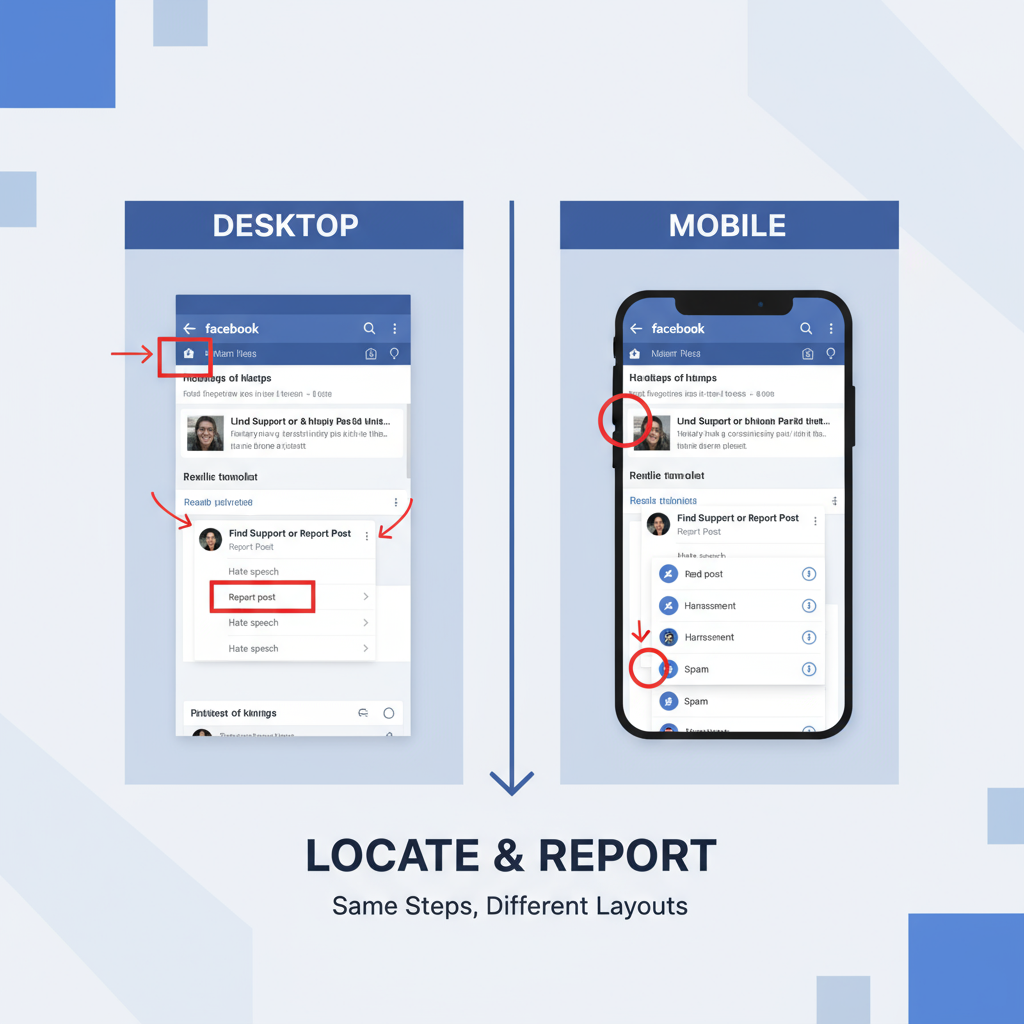
How you find the targeted post varies based on device.
On Desktop
- Use your News Feed or visit Profile Pages to locate the content.
- Click the timestamp to view the post in full.
On Mobile App
- Open the Facebook app on your smartphone or tablet.
- Navigate through your feed, a group, or a page to find the post.
- Tap the post to expand if necessary.
---
Step-by-Step: Reporting a Post via Desktop Browser
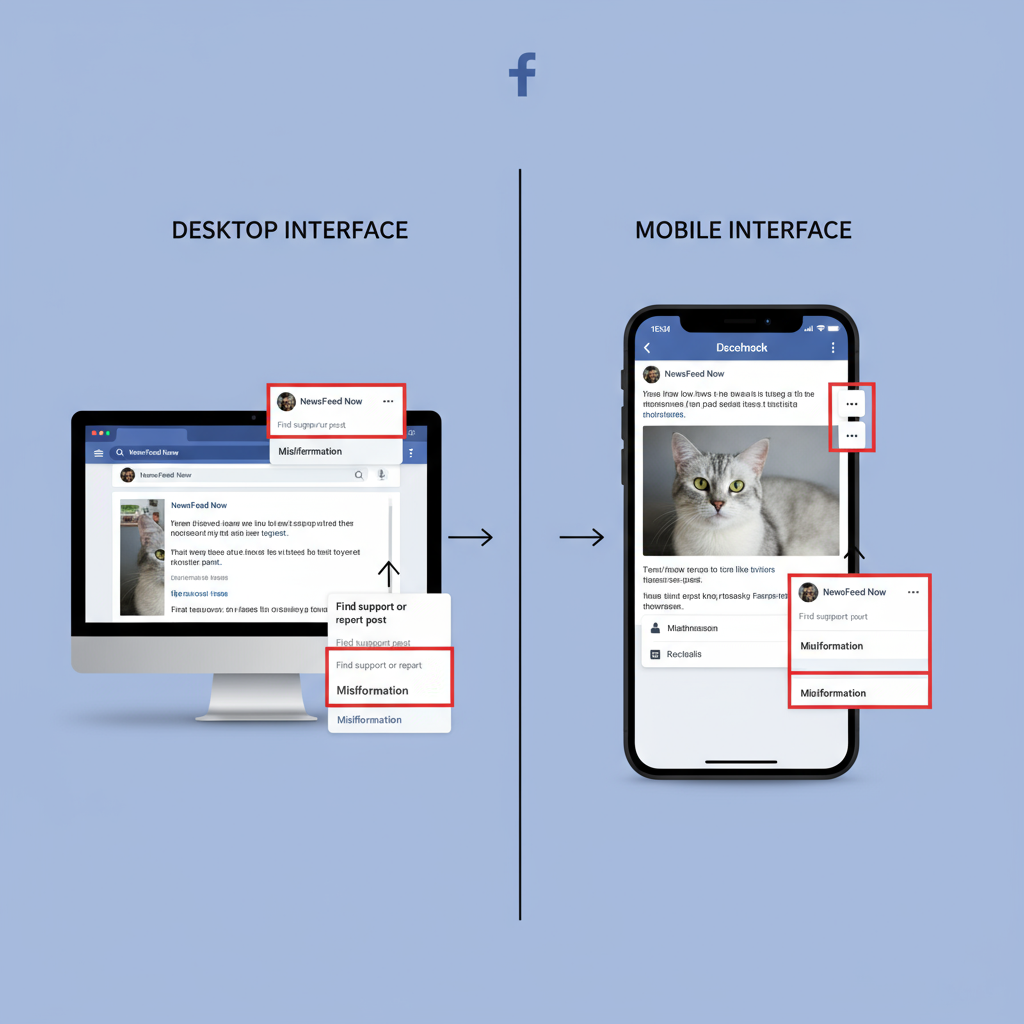
To report content from a desktop browser:
- Find the post in your feed, group, or on a profile.
- Click the three dots (…) in the top-right corner.
- Choose "Find support or report post".
- Select the category that best matches your concern (e.g., Hate Speech, Violence).
- Follow the prompts to submit your report.
- Wait for the on-screen confirmation.
---
Step-by-Step: Reporting a Post via Facebook Mobile App
To report on mobile (iOS or Android):
- Find the post in your feed or on a profile.
- Tap the three horizontal dots (…) at the upper right.
- Choose "Find support or report post".
- Pick the most accurate violation reason.
- Continue through the prompts and confirm.
Pro Tip: If reporting a post in a group, admins might review it before Facebook’s moderation team.
---
What Happens After You Submit a Report
After you submit your report:
- Facebook reviews the post against the Community Standards.
- If a violation is confirmed, the post may be removed, and the poster could face restrictions.
- If it does not violate rules, it remains online, though your report stays on record.
- Some reports may be reviewed by third-party fact-checkers.
---
How to Check the Status of Your Report in the Support Inbox
Facebook sends updates to your Support Inbox.
Access on Desktop
- Click your profile picture in the top right.
- Go to Help & Support → Support Inbox.
- Review your reports and their results.
Access on Mobile
- Tap the menu (three horizontal lines).
- Scroll to Help & Support → Support Inbox.
- View each report’s details.
---
Tips for Effective Reporting
Increase your chances of action by:
- Being Accurate: Choose the correct category.
- Adding Context: Provide additional details when prompted.
- Avoiding Misuse: Don’t file false reports to target others.
- Acting Promptly: Report harmful content quickly for faster review.
| Do’s | Don'ts |
|---|---|
| Report genuine violations quickly | Report posts just because you disagree |
| Provide accurate classification | Use reporting to harass others |
| Check Support Inbox for updates | Expect immediate content removal |
---
Alternatives to Reporting
Sometimes, direct reporting isn’t necessary. You could:
- Block the User – Eliminates their interactions with you.
- Unfollow or Snooze – Hides their posts temporarily or permanently from your feed.
- Adjust Privacy Settings – Limits who can see or interact with your content.
These measures can minimize exposure to undesired content without involving formal moderation.
---
FAQs on Reporting Posts to Facebook
Q: Will the person know I reported their post?
A: No. Reports are confidential, and the poster won’t know your identity.
Q: How long does Facebook take to review?
A: Review times vary from hours to days, depending on workload.
Q: Can I retract a report?
A: No, but you can add details through the Support Inbox.
Q: What happens if I accidentally report?
A: If the content doesn’t violate rules, no action will be taken.
Q: Can repeated violations lead to a ban?
A: Yes. Multiple breaches may result in temporary or permanent account restrictions.
---
Final Thoughts
Knowing how to report a post to Facebook empowers you to take action against harmful content in a responsible way. By following the right steps on desktop or mobile, selecting valid reasons, and using best practices, your reports can genuinely improve the safety and quality of the platform.
If you’ve encountered content that breaches Facebook’s Community Standards, don’t hesitate — report it today to help create a more respectful and trustworthy online space.