Schedule Message on Facebook: Step-by-Step Guide
Learn how to schedule Facebook posts and automate Messenger replies using Meta Business Suite, with tips for timing and content preparation.
Schedule Message on Facebook: Step-by-Step Guide
If you’ve ever wondered how to schedule message Facebook effectively, you’re not alone. Facebook is one of the leading social platforms for building audience connections, and message scheduling can dramatically boost efficiency and engagement. Whether you’re sharing campaigns, managing customer inquiries, or posting updates, mastering Facebook’s scheduling tools ensures your content appears at the perfect time.
In this comprehensive guide, we’ll cover scheduling capabilities, how to prepare your content, exact steps for using Meta Business Suite, best practices for timing, troubleshooting, compliance, and integrating into a broader social media strategy.
---
Understanding Facebook’s Scheduling Capabilities
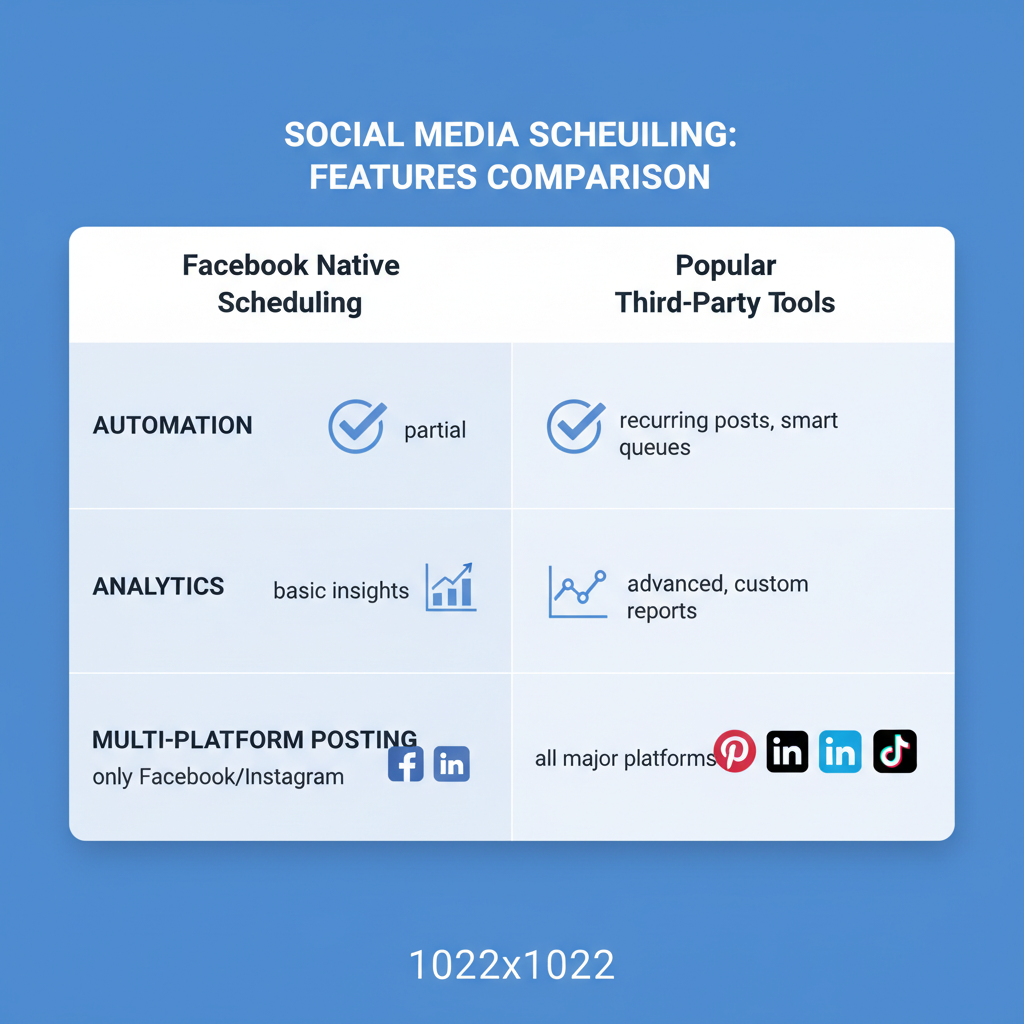
Before learning how to schedule messages, it’s important to understand Facebook scheduling limitations:
- Pages: Facebook Pages can schedule posts natively via Meta Business Suite, including text updates, media, and links. Automated replies can be set, but directly scheduling private messages is limited.
- Personal Profiles: Facebook does not enable post or private message scheduling for personal profiles without third-party automation, which may violate their terms if misused.
- Groups: You can schedule posts for groups you manage directly in Facebook.
Key takeaway: Native scheduling is primarily for Pages and Groups — private messaging requires specialized tools and careful compliance.
---
Overview of Meta Business Suite and Its Message Scheduling Features
Meta Business Suite, formerly Facebook Business Suite, is the official centralized dashboard for managing Facebook Pages and Instagram accounts.
Core features:
- Unified inbox for Messenger and Instagram direct messages
- Calendar view for upcoming scheduled posts
- Post drafting and scheduling across connected accounts
- Analytics and insights to refine timing and content
- Automated responses in Messenger for predefined triggers
While the tool focuses on post scheduling, Messenger automation allows some level of prepared messaging.
---
How to Prepare Your Message Content for Scheduling
Effective scheduled messaging starts with strong content readiness:
- Text — Keep it concise and action-focused.
- Images — Choose eye-catching, high-resolution visuals.
- Links — Test all links to ensure they work.
- Hashtags — Pick relevant hashtags if applicable.
- Formatting — Maintain consistent brand voice, style, and tone.
Content Checklist
| Element | Why It Matters | Preparation Tips |
|---|---|---|
| Headline/Text | Grabs attention | Keep under 80 characters for mobile readability |
| Image | Boosts engagement | Compress to <500KB for quick load |
| Link | Directs to conversion | Use URL shorteners if needed |
| CTA (Call-to-Action) | Encourages action | Be specific — "Shop Now", "Register Today" |
---
Step-by-Step Guide to Scheduling a Post or Message via Facebook Page
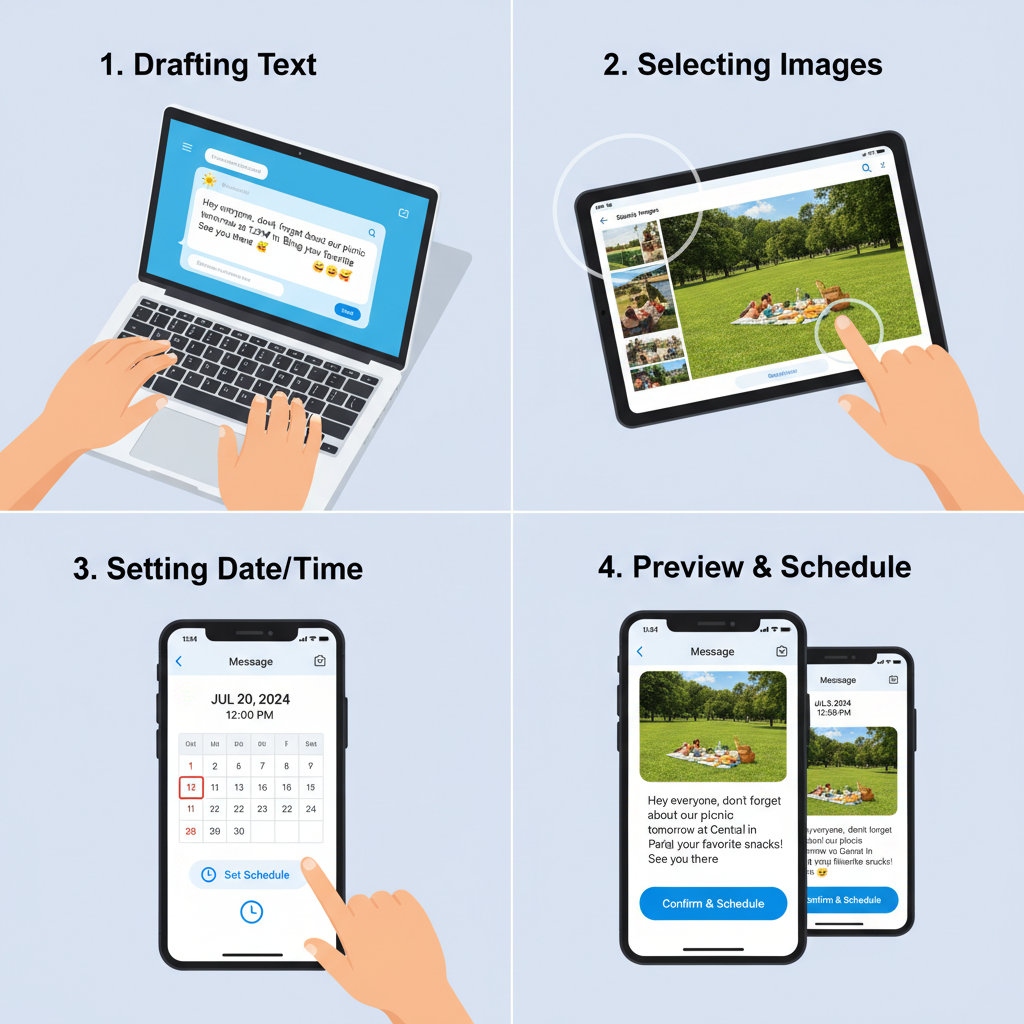
Follow these steps to schedule content using Meta Business Suite:
- Log In to Meta Business Suite
- Navigate to `business.facebook.com` and select your Page.
- Click “Create Post”
- Choose Facebook, Instagram, or both.
- Add Your Content
- Enter text, upload images/videos, and include links.
- Click “Schedule”
- Use the date/time picker to select your posting moment.
- Set Date and Time
- Match to peak user activity for optimal reach.
- Confirm Scheduling
- The post now appears in your Calendar view.
For Messenger automated replies: Go to Inbox → Automated Responses, then configure triggers (e.g., away messages).
---
Using Third-Party Tools for Scheduled Messaging
For complex workflows or private message scheduling, consider trusted tools:
- Hootsuite
- Buffer
- Sprout Social
- Sendible
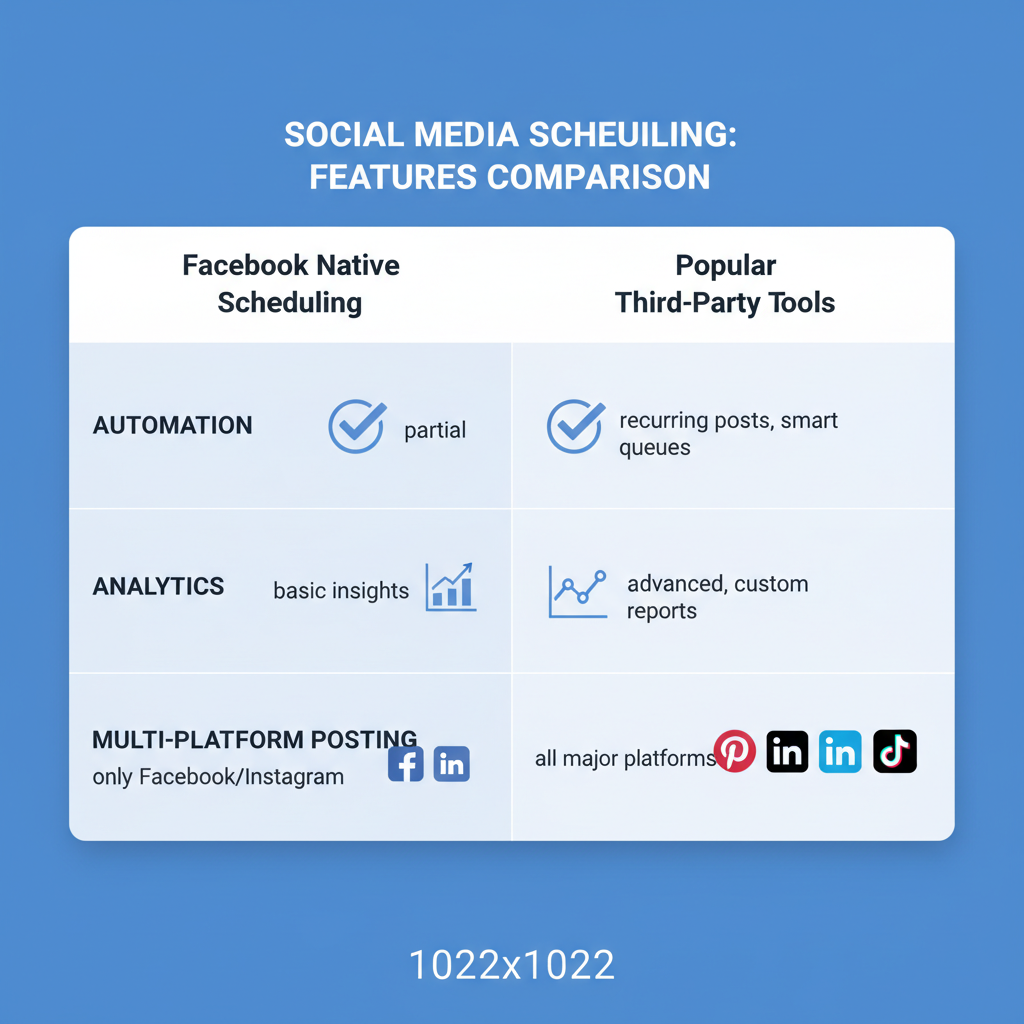
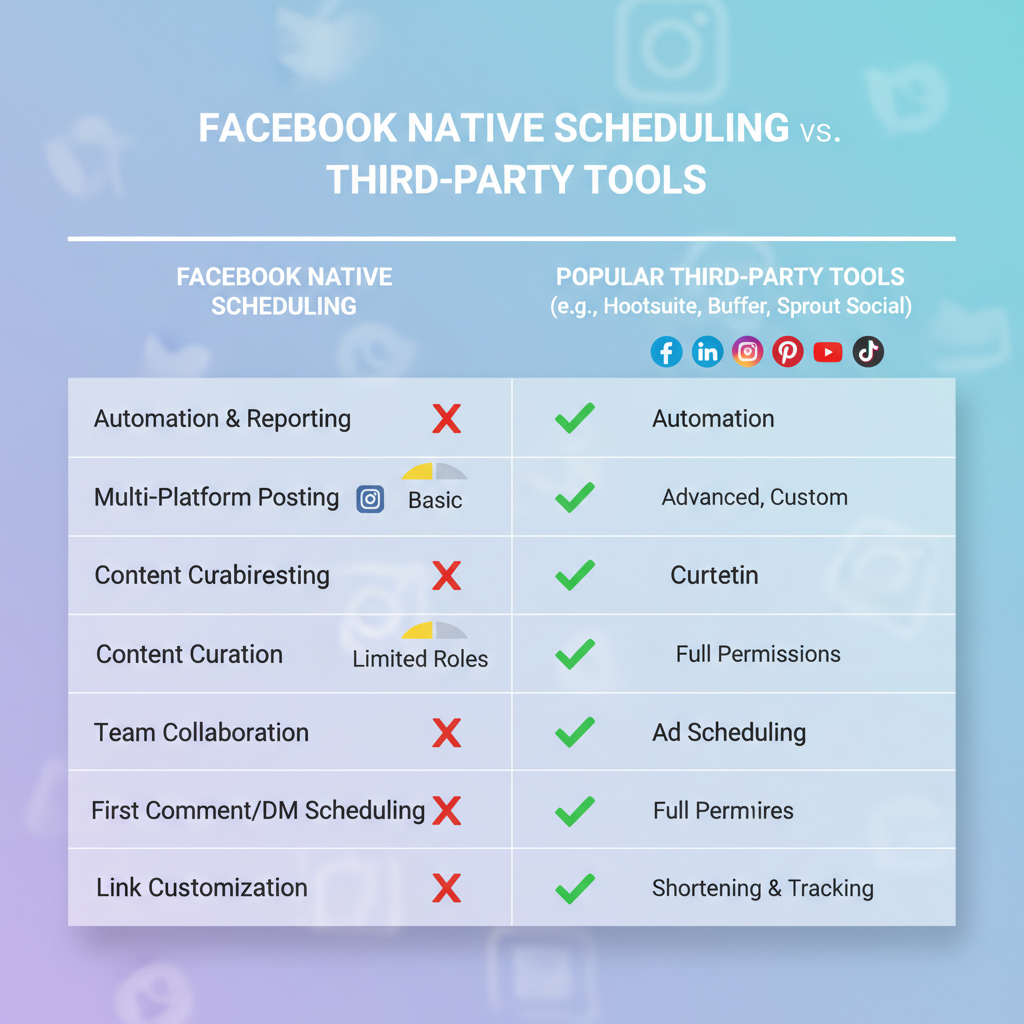
These platforms offer batch scheduling, analytics, multi-account management, and cross-platform posting. Always check Facebook API rules before scheduling private messages to prevent policy violations.
---
Best Practices for Timing Your Scheduled Messages
Getting timing right can elevate engagement significantly.
Strategies:
- Analyze Insights — Find precise peak activity periods using analytics.
- Account for Time Zones — Schedule based on where your key audience lives.
- Limit Frequency — Avoid spam by posting 1–3 times daily.
- Tie to Events — Sync with relevant industry or brand events.
---
Monitoring Scheduled Messages and Editing Before Posting
Scheduled posts are editable until they go live.
Edit Steps:
- Open Calendar in Meta Business Suite.
- Select the post.
- Click Edit to change text, visuals, or timing.
- Save updates.
This keeps your content fresh and relevant, even if circumstances change.
---
Troubleshooting Common Scheduling Issues
Common issues and fixes:
- Missed post time — Review time zone configuration.
- Content rejection — Avoid terms/media violating guidelines.
- Failed scheduling — Check internet stability before confirming.
If the scheduling button fails, clear browser cache or try a different browser.
---
Compliance and Facebook Guidelines
Follow Facebook’s Platform Policy:
- Only message users who opt in.
- Limit automation and avoid unsolicited outreach.
- Space out scheduled messages responsibly.
Non-compliance risks account penalties or bans.
---
Integrating Scheduled Messages into Your Social Media Plan
Scheduled messages work best within a coordinated strategy:
- Plan monthly campaign calendars across Facebook, Instagram, and email.
- Mix organic and paid scheduled content.
- Review analytics monthly to adjust schedules.
- Engage after posting to sustain interaction.
---
Summary and Next Steps
Mastering how to schedule message Facebook via Meta Business Suite or approved third-party tools can transform your social workflow. By preparing strong content, using optimal timing, troubleshooting proactively, and maintaining compliance, you’ll maximize audience connection while saving valuable time.
Start implementing these steps today. Refine your schedule, monitor performance, and adapt — your engagement results will speak for themselves.